
How to Use AI at Work: Complete Beginner’s Guide (2026)
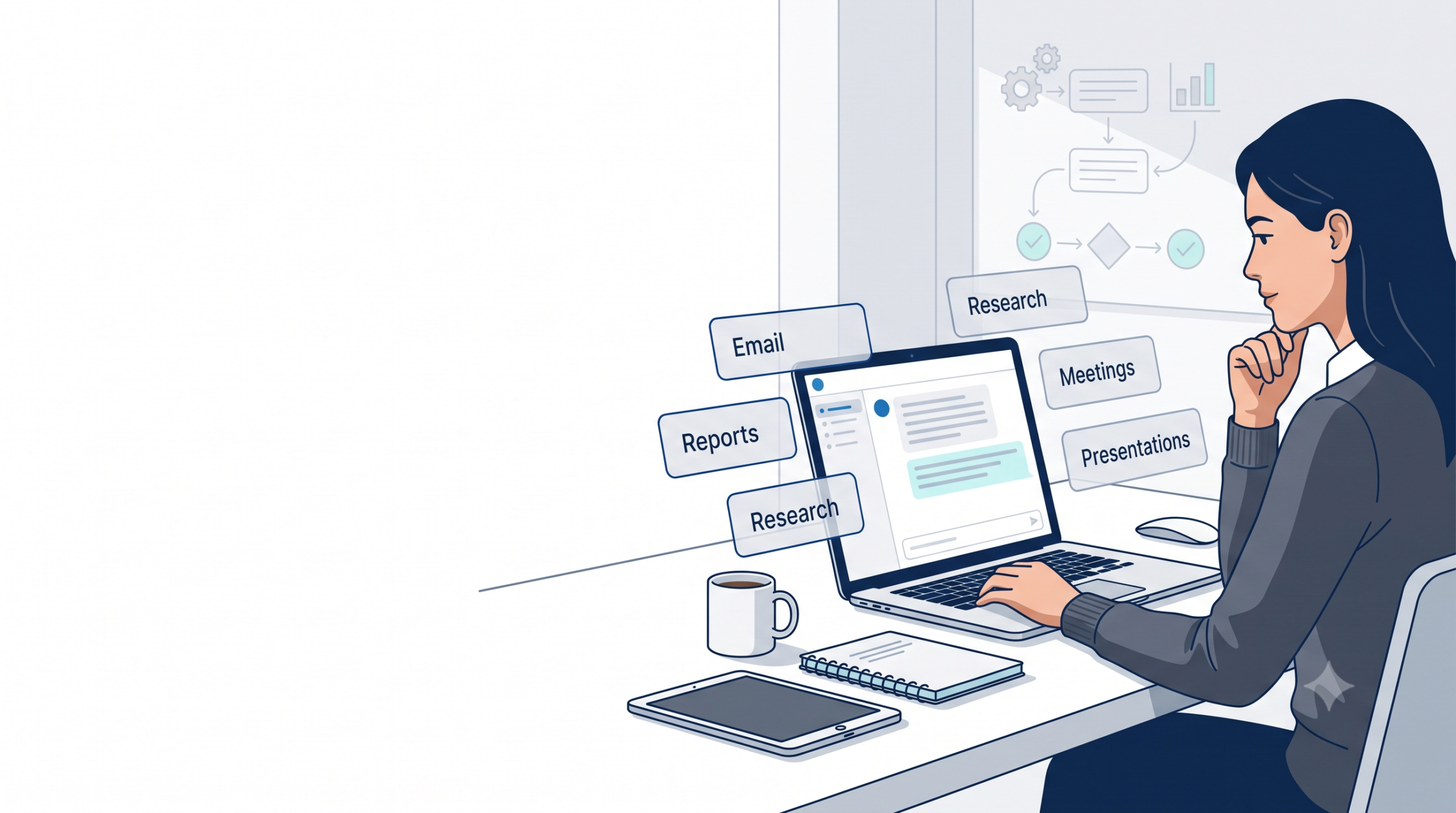
When I first started experimenting with AI at work, I made the same mistake most people do—I tried using it for everything. Some tasks became dramatically faster. Others actually became slower because I spent more time correcting mistakes than doing the work myself.
That experience led me to a simple question:
“How do you know which tasks should be delegated to AI?”
After months of testing AI across engineering documentation, reports, presentations, emails, investigations, and planning, I realized the answer wasn’t the AI tool—it was the nature of the task itself.
That’s why I created the AI Delegation Matrix.
Seventy percent of employees say their company has given them no guidance on how to use AI at work. Half say they’ve received no training at all. And yet most of those same employees already believe — correctly — that learning this skill matters for where their career goes next.
That gap is exactly where this guide lives. Not in the debate about whether AI belongs at work. That question is settled. This is the guide for what happens the Monday morning after you’ve decided to actually start.
The Gap Nobody’s Talking About
Most “AI at work” content assumes you’ve already made peace with the tools and just need a longer list of use cases. That’s not usually the real problem. The real problem is narrower and more solvable: nobody has shown you a starting sequence — what to check first, what to try first, and what to verify before you trust it. This guide is that sequence, in order, without assuming you’ve used any AI tool beyond typing a question into ChatGPT once out of curiosity.
What “Using AI at Work” Actually Means?
Generative AI vs. the AI Already Built Into Your Tools
“AI” at work usually means one of two things, and it’s worth telling them apart before you go further.
Generative AI assistants — ChatGPT, Claude, Gemini, Microsoft Copilot — are conversational tools you actively direct. You type an instruction; they generate a response. This is almost certainly what you mean when you say “using AI at work,” and it’s the focus of this guide.
AI features already inside your existing software — Excel’s data analysis suggestions, Google Calendar’s scheduling suggestions, spell-check-style writing suggestions — are AI too, but they’re passive. You don’t need a guide to use them; they show up on their own.
The Three Things Every AI Tool at Work Is Doing
Underneath the branding, every generative AI tool at work does one of three things: it drafts (writing, summarizing, restructuring), it analyzes (finding patterns, comparing options, explaining something complex), or it converts (turning rough notes into a polished document, turning a long document into a short one). Almost everything you’ll do with AI at work is one of these three, which makes the tool itself far less intimidating once you see the pattern.
Before You Open a Single AI Tool: Check This First
What Your Company’s AI Policy Probably Says (and How to Find Out)
Most beginner guides skip straight to tool selection. That’s a mistake. Before you paste anything into any AI tool, spend five minutes finding out whether your company has an AI usage policy — check your intranet, ask your manager, or ask IT directly. If the answer is “we don’t have one,” that’s useful information too: it means the responsibility for using good judgment sits entirely with you, which makes the verification habit later in this guide even more important.
The Data You Should Never Paste Into a Public AI Tool
Until you know your company’s policy, treat any AI tool without an enterprise/business-tier agreement as public. That means: no customer personal data, no unreleased financial figures, no proprietary source code or trade secrets, and no confidential HR information. This isn’t AI-specific caution — it’s the same judgment you’d apply to pasting something into a random public website, because in a meaningful sense, that’s what you’re doing.
Step 1 — Place Your Tasks on the AI Delegation Matrix
Every “sort your tasks into buckets” framework you’ll find elsewhere makes the same mistake: it only asks one question — how complex is this task? That misses the trap that actually gets beginners in trouble. A task can be simple to do and still be dangerous to get wrong. Data entry into a compliance report is low-judgment — and high-consequence if AI quietly transposes a number. A single-axis list can’t see that. A two-axis matrix can.
The AI Delegation Matrix plots every task you do against two questions:
- How much judgment does this task require? (Low → High)
- What happens if AI gets it wrong? (Low consequence → High consequence)
                          HIGH CONSEQUENCE IF WRONG
                                    │
              VERIFY TWICE         │        KEEP IT HUMAN
        (low judgment,             │      (high judgment,
         high stakes)              │       high stakes)
                                    │
   ─────────────────────────────────────────────────────────
                                    │
              AUTOMATE IT          │      BRAINSTORM WITH IT
        (low judgment,             │      (high judgment,
         low stakes)               │       low stakes)
                                    │
                          LOW CONSEQUENCE IF WRONG

LOW JUDGMENT REQUIRED ──────────────► HIGH JUDGMENT REQUIRED| Quadrant | What belongs here | Example | How to work in it |
|---|---|---|---|
| Automate It (low judgment, low consequence) | Repetitive, easily checkable, no real downside to a small error | Formatting a messy spreadsheet, drafting a routine internal update | Let AI do the full first pass. Spot-check, don’t line-by-line audit. |
| Brainstorm With It (high judgment, low consequence) | Thinking out loud, generating options, nothing is final yet | Exploring angles on a problem, pressure-testing an idea | Use AI freely and often — there’s no real cost to a bad suggestion here. |
| Verify Twice (low judgment, high consequence) | Looks simple, but an unnoticed error causes real damage | Copying figures into a compliance report, summarizing a client’s exact requirements | This is the quadrant beginners miss. Never skip verification just because the task feels easy. |
| Keep It Human (high judgment, high consequence) | Trust, ethics, relationships, irreversible decisions | Delivering difficult feedback, final safety or legal sign-off | Don’t delegate the decision — at most, use AI to help you prepare for it. |
Why this is more useful than a simple list: most beginners intuitively get “Automate It” and “Keep It Human” right on their own. Where people actually get burned is the “Verify Twice” quadrant — tasks that feel too small to double-check, right up until one of them isn’t. Naming that quadrant is the entire point of this framework.
Try it now: pick three of your recurring tasks, plot each one on the matrix above by asking the two questions, and start this week with one task from Automate It and one from Verify Twice — that pairing teaches you both halves of the skill at once: delegation and verification.
Step 2 — Choose Your First Tool (Without Overthinking It)
If Your Employer Already Gives You a Tool
Use it first, even if you’ve heard another tool is “better.” If your company provides Microsoft Copilot, Google Gemini, or an enterprise ChatGPT/Claude plan, that version usually comes with a data-handling agreement your company has already vetted — solving the privacy question in Step 0 automatically, and saving you from re-learning a second tool later.
If You’re Choosing for Yourself
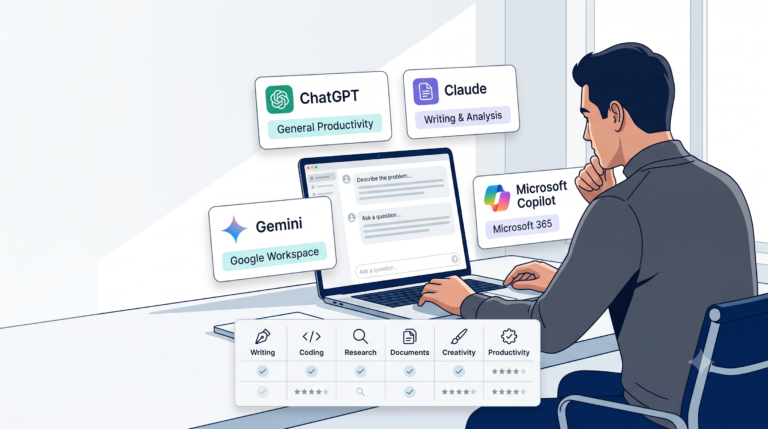
| Tool | Best for | Consider something else if | Free tier? |
|---|---|---|---|
| ChatGPT | General all-purpose drafting, widest plugin/integration ecosystem | You need strict data-training guarantees by default | Yes |
| Claude | Long-document analysis, sustained multi-step writing, careful reasoning | You need deep integration with Google Workspace specifically | Yes |
| Gemini | Native integration if your company already runs Google Workspace | You’re not on Google Workspace and don’t need that integration | Yes |
| Microsoft Copilot | Native integration with Word, Excel, Outlook, Teams | Your company doesn’t license Microsoft 365 Copilot specifically | Limited without a paid plan |
There is no universally “best” choice here — the right first tool is almost always whichever one is already free, already approved, and already integrated into software you use daily.
Step 3 — Write Prompts That Actually Work
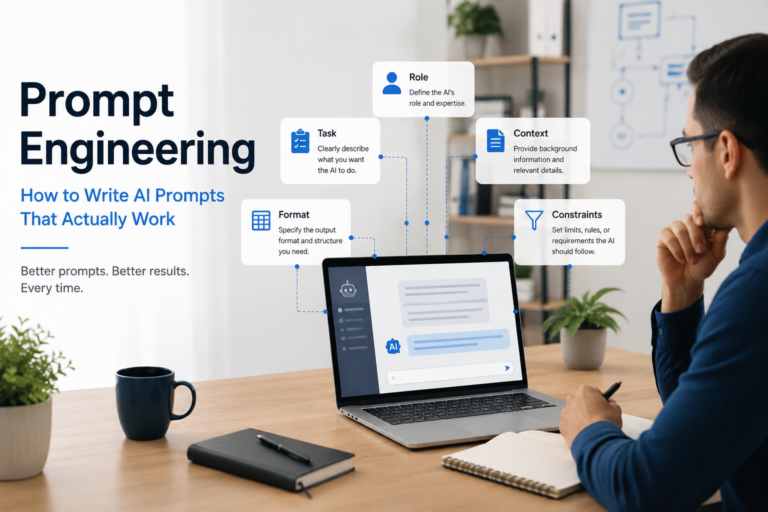
The Four-Part Prompt Structure Beginners Can Use Immediately
You don’t need to study prompt engineering to get useful results. Four elements cover most beginner needs:
- Role or context — briefly tell it what you’re trying to accomplish and for whom.
- The task itself — stated as specifically as you can manage.
- Format instructions — how you want the output structured (bullet points, a table, a specific length).
- Constraints — anything it should avoid or must include.
Three Beginner Prompts You Can Copy Today
- “I’m drafting a status update for my manager on [project]. Turn these rough notes into three sections — Wins, Challenges, Next Steps — in a professional but not overly formal tone: [paste notes].”
- “Summarize this document into five bullet points a busy executive could read in 30 seconds: [paste document].”
- “I’m stuck on how to approach [problem]. Give me three different angles I haven’t considered, and a one-sentence pro/con for each.”
Step 4 — Verify Before You Trust (This Is the Skill That Matters Most)
Why AI Sounds Confident Even When It’s Wrong
Generative AI tools are built to produce fluent, confident-sounding text — that’s a feature of how they work, not a sign of accuracy. A wrong answer and a right answer can read with identical confidence. This is the single most important thing to internalize in this entire guide: fluency is not a signal of correctness.
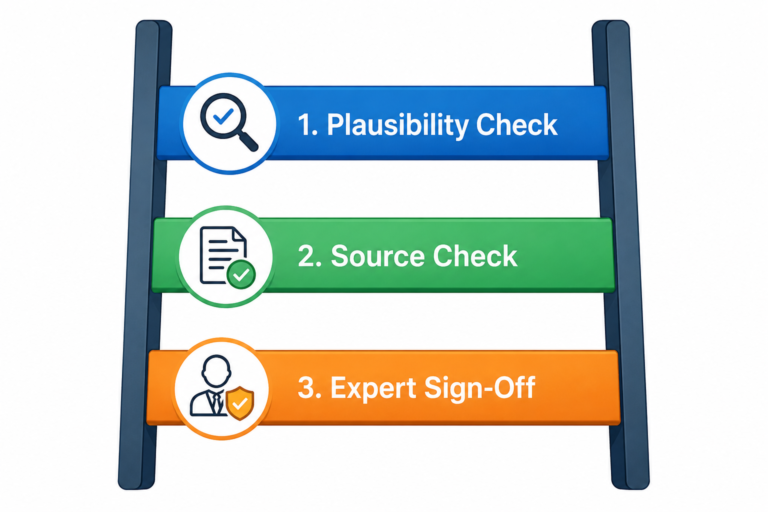
The Five-Point Verification Checklist
- Would this fact matter if it were wrong? If yes, verify it independently before using it.
- Can you trace the claim to a real source? If the AI cites something, check that the source actually says what’s claimed.
- Does a number look suspiciously precise or suspiciously round? Both are common hallucination patterns worth a second look.
- Would you be comfortable if your name were on this exact wording, unedited? If not, it needs your editing pass regardless of accuracy.
- Did you ask it to double-check itself? Asking “are you sure about that figure?” in a follow-up sometimes surfaces the model’s own uncertainty — not foolproof, but a useful extra check.
Your First Week With AI at Work
| Day | Action |
|---|---|
| Day 1 | Plot three real tasks on the AI Delegation Matrix (Step 1). Pick your first tool (Step 2). |
| Day 2 | Try one task from the Automate It quadrant using the four-part prompt structure. |
| Day 3 | Try a task from Verify Twice. Run the full verification checklist on it — this is the pairing that matters most. |
| Day 4 | Attempt one task from Brainstorm With It — use AI to generate options before you decide anything yourself. |
| Day 5 | Review the week: which quadrant saved the most real time, and which task belongs permanently in Keep It Human. Write it down — that list is yours now, not a template’s. |
Common Mistakes Beginners Make
- Treating the first output as the final output. The first response is a draft, not a deliverable — plan for a revision pass every time.
- Using it for everything at once. Overloading Week 1 with too many unfamiliar tasks is the fastest way to abandon the habit. Start narrow.
- Treating every low-judgment task as automatically safe. This is exactly the mistake the Verify Twice quadrant exists to prevent — simple isn’t the same as low-stakes.
- Skipping verification on “obviously fine” outputs. The outputs that cause real problems are usually the ones that looked fine at a glance.
- Ignoring company policy until something goes wrong. Five minutes of checking now is cheaper than a data-handling incident later.
- Assuming one tool does everything best. Different tools have different genuine strengths (see the tool table above) — it’s fine to use more than one.
When Not to Use AI at Work
This is the section most guides skip, and it matters more than any use case above. Do not use AI as the final word on: anything requiring legal sign-off, anything touching health and safety decisions, anything involving confidential personal data about a colleague or customer, or any situation where the human relationship — trust, empathy, accountability — is the actual point of the task. AI can help you prepare for those moments. It should never be those moments.
Where to Go From Here
This guide covers the foundation every professional needs, regardless of industry. If you want to go deeper into how AI applies specifically to your field, we publish profession-specific guides — starting with engineering and safety/risk management, with more professions being added over time. Explore by profession, or keep building your fundamentals with our guides on prompt engineering, choosing between ChatGPT, Claude, Gemini, and Copilot, and verifying AI output in more depth.
FREE DOWNLOADS
📄 AI Delegation Matrix Worksheet
Map your daily tasks and decide what to automate, verify, collaborate on, or keep human.
Frequently Asked Questions
Is it safe to use ChatGPT for work tasks? It depends on what you’re pasting into it. Avoid confidential or personal data unless your company has a vetted enterprise agreement in place — see the data privacy section above.
Which AI tool should a complete beginner start with? Whichever one your employer already provides and has approved. If you’re choosing freely, start with whichever tool is already built into software you use daily.
How much time does it actually take to learn this? Most people see real time savings within their first week using just two or three tasks from the Automate It quadrant — this guide’s five-day plan is designed around that timeline.
Will learning AI make me redundant instead of helping my career? The evidence points the other way: professionals who learn to use AI well are becoming more valuable, not less, because the judgment, verification, and human-relationship parts of every job remain squarely human.
What is the AI Delegation Matrix? A simple two-axis framework for deciding whether to hand a task to AI: plot it by how much judgment it requires and how much it would cost you if AI got it wrong. The four resulting quadrants — Automate It, Brainstorm With It, Verify Twice, and Keep It Human — tell you not just whether to use AI, but how carefully to check its work. See the full matrix above.
What’s the biggest mistake beginners make? Assuming a task is safe to automate just because it’s simple. That’s precisely the blind spot the matrix’s “Verify Twice” quadrant is built to catch — see the Five-Point Verification Checklist above for how to check your work in that quadrant.

2 Comments